
This will be useful if:
- You are an Instructor User on the Licence Help platform.
You are trying to:
- Manage your service areas (add or remove suburbs/regions where you pick up learners).
Overview
Managing your service areas tells learners where you will pick up and drop off. Keeping this list accurate helps learners find you in searches and avoids booking confusion. Use the steps below to add suburbs, set meeting points, remove locations, and publish your changes. Changes apply to future bookings only — they do not automatically update existing bookings.
Step 1.
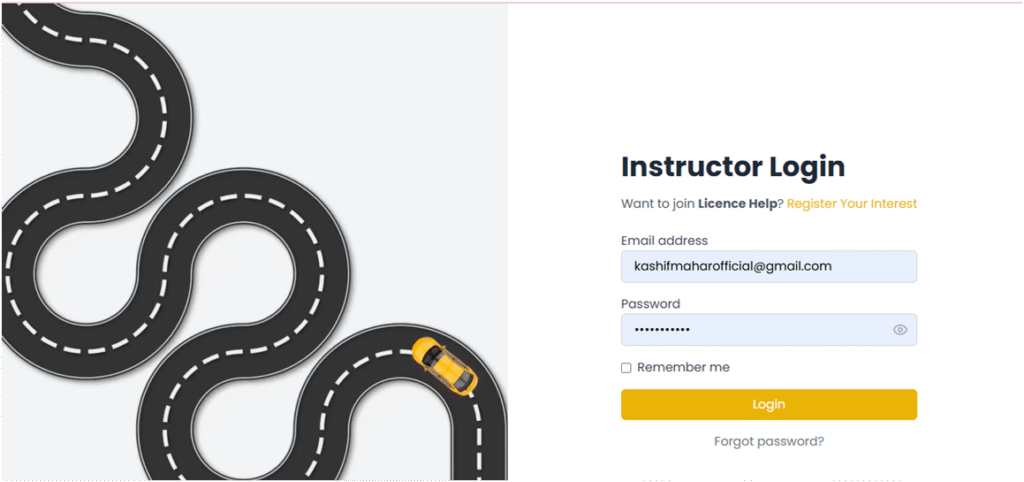
Log in to your Instructor account
Step 2.
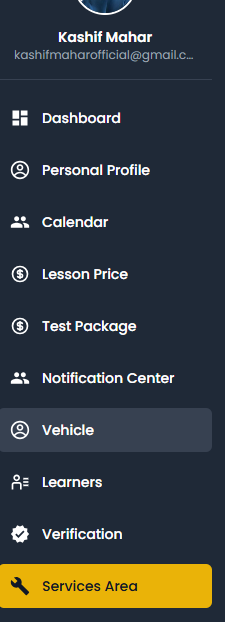
Open the Dashboard and select My Profile or Manage Service Areas (the exact label may vary).
here is the Services Area
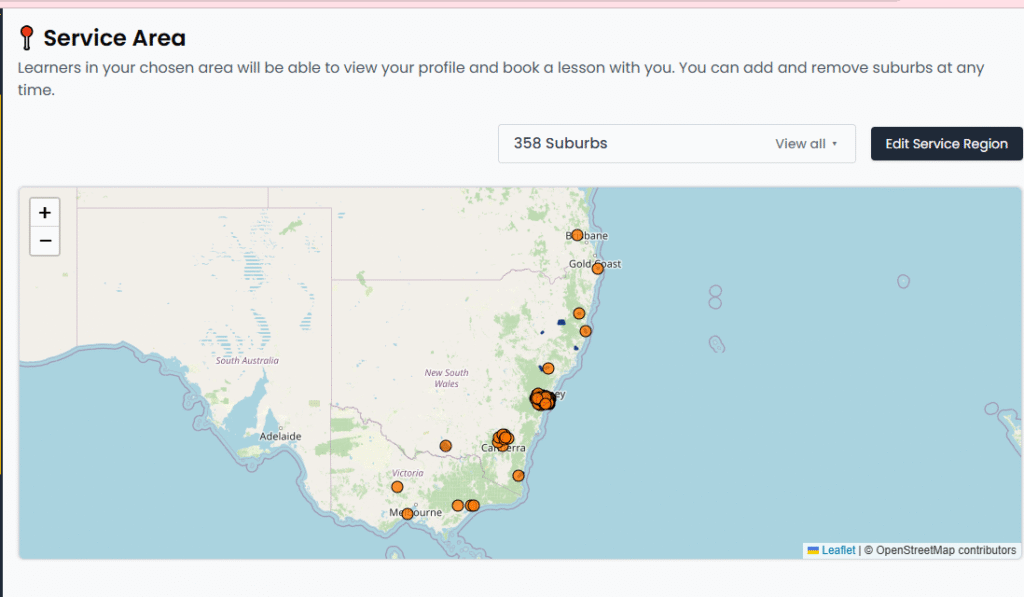
Click “Edit Service Region” (or Add Service Area).

choose the state/region you operate in.
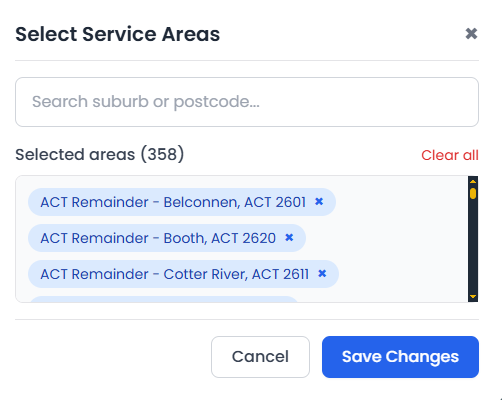
When you select region then select services area
Use the search box to find a suburb: type the suburb name, choose it from the dropdown, then click Add (or press Enter).
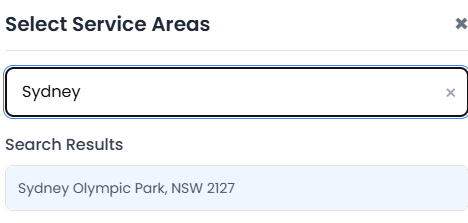
whether you update your subrubs then they must show like this
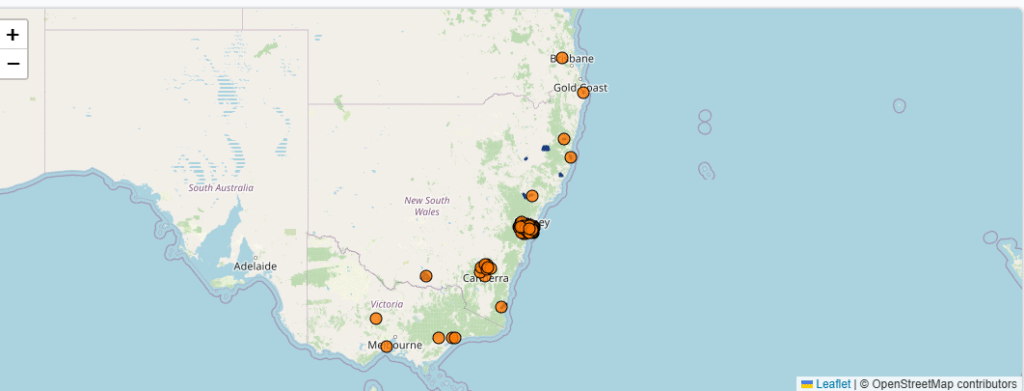
Repeat this to add multiple suburbs — each one will appear in the list for that region.
Keep your service areas current so learners can find you. If you cover a wide area, consider grouping suburbs into logical regions (e.g., “North-East”) in your notes.