
This will be useful if:
You are an Instructor User on the Licence Help platform.
You are trying to:
Set up your Profile and Vehicle Information.
Overview:
Your vehicle details are an essential part of your instructor profile on Licence Help. This helps learners identify the type of vehicle they’ll be training in and ensures that your account meets all verification and compliance requirements.
Adding clear and accurate vehicle information also builds trust with learners and increases your chances of getting more bookings.
Step-by-step — Set Your Profile and Vehicle
Step 1 — Log in to Your Instructor Account
Go to the Licence Help website
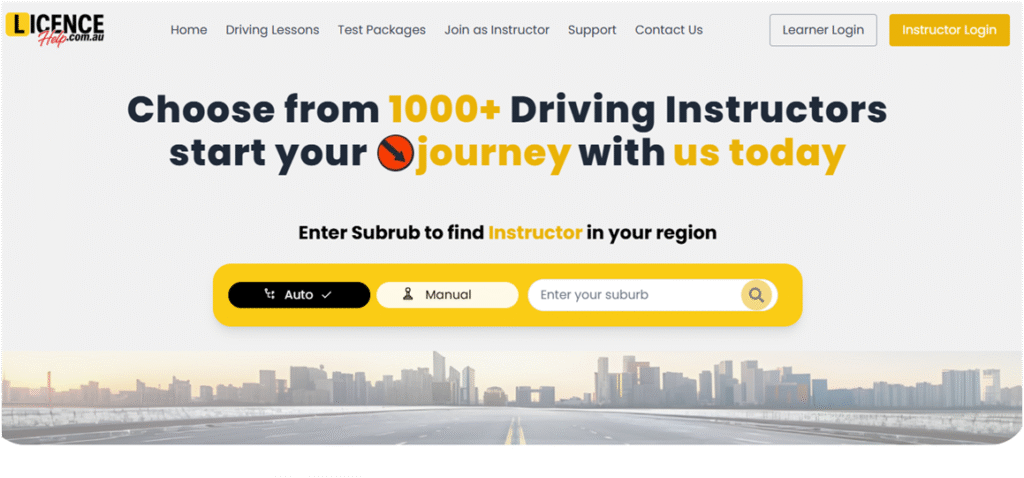
Click Login, then select Instructor Login
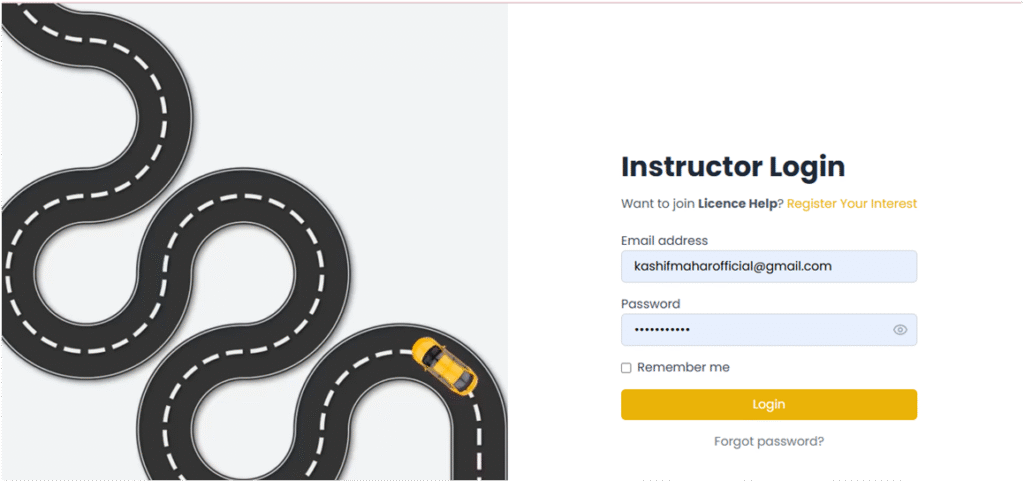
Enter your email and password to access your dashboard.
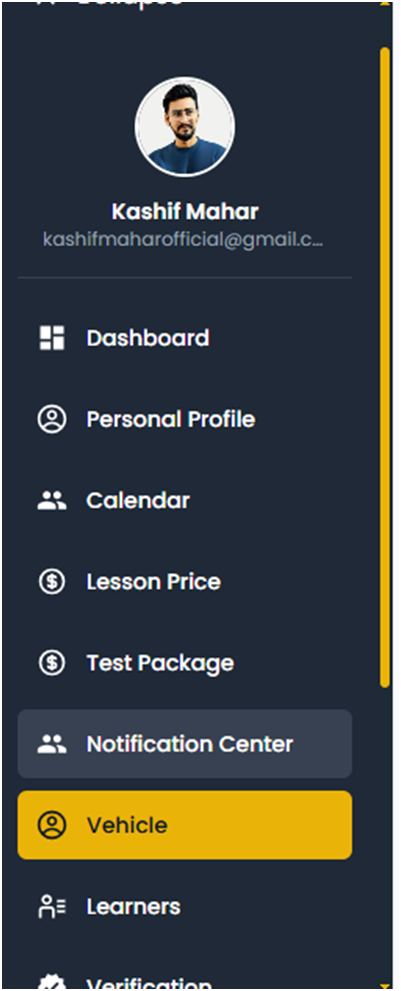
Now Select Vehicle
Step 2 — Open Vehicle Settings From your Dashboard, click the Menu icon on the top right
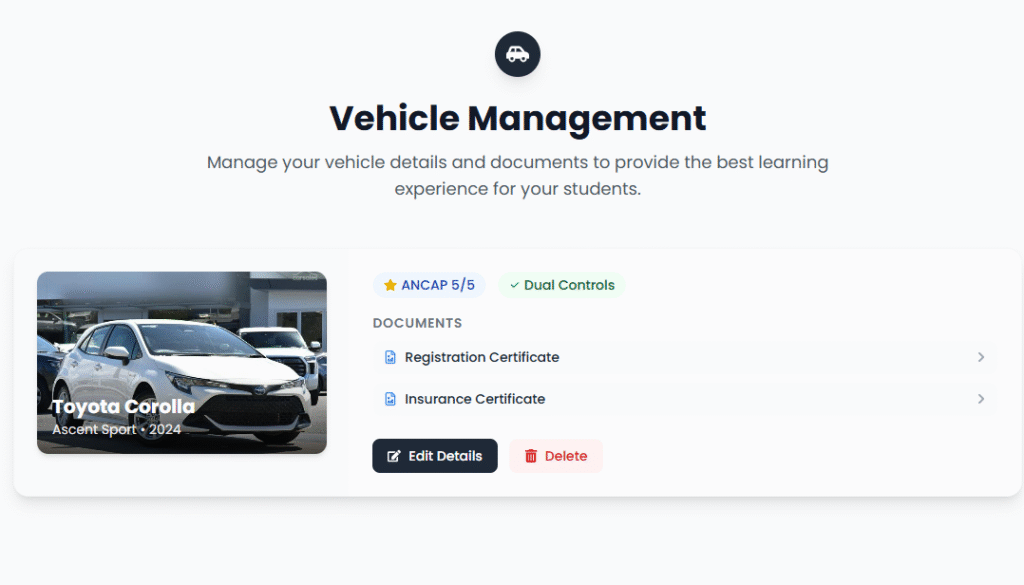
Select Vehicle Settings or My Vehicle from the dropdown options
Now click the Edit details to edit your Vehicle
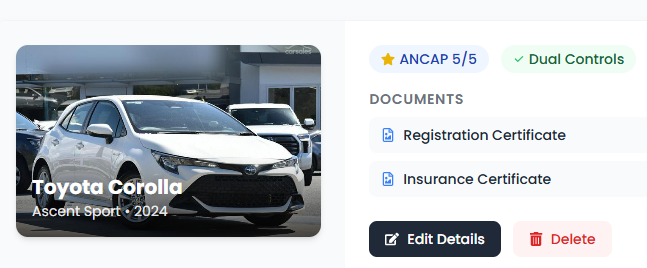
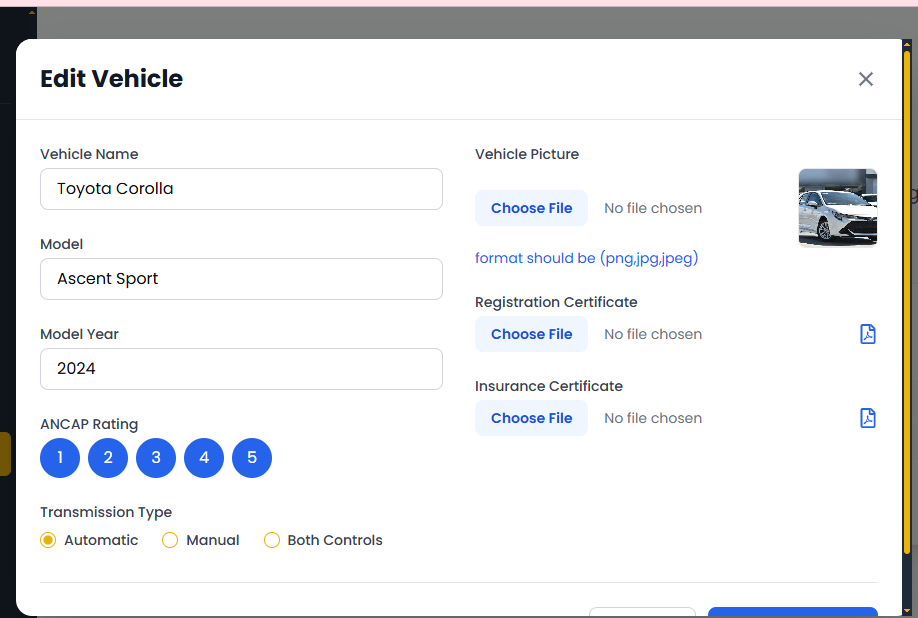
Step 3 — Add Vehicle Details
- Enter your Vehicle Name and Model (for example, Toyota Corolla 2022).
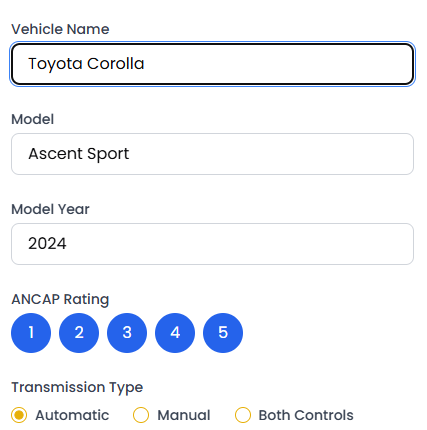
Add your Vehicle Picture — make sure the image is clear, well-lit, and shows the full car.
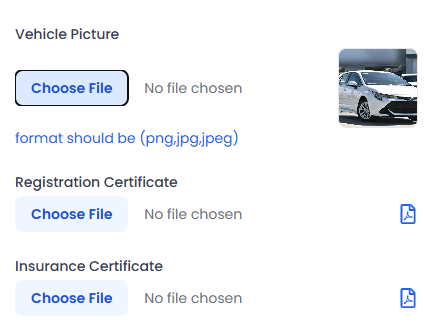
Upload your Vehicle Registration Certificate for verification.
You can also upload Additional Certificates (e.g., Insurance, Roadworthiness, Instructor Car Approval).
Step 4 — Save Vehicle Information
- Once all details and documents are entered, click Save Changes.
- Your vehicle will now be added to your profile and visible to learners.
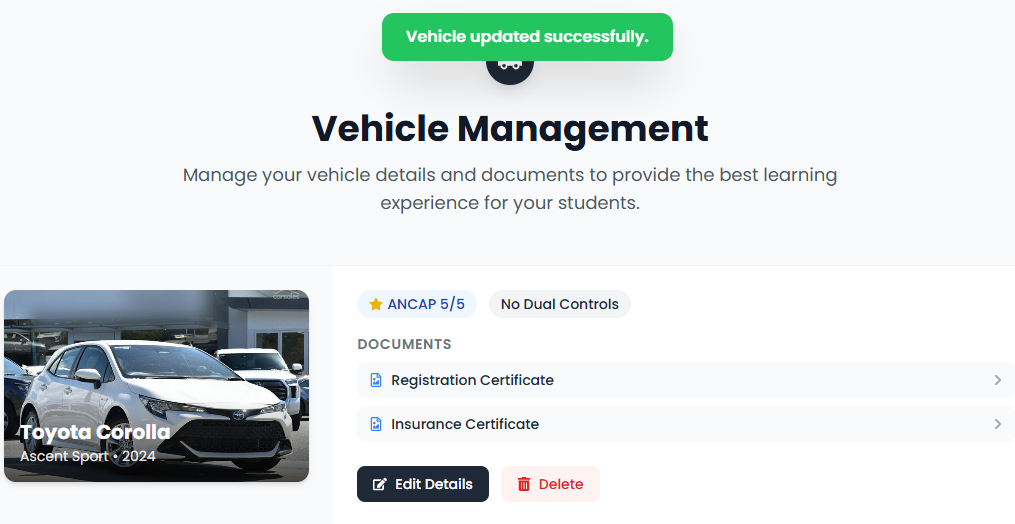
Once you all done your Vehicle information your Vehicle updated successfully
Important Notes:
- Ensure all documents are valid and clearly visible before uploading.
- Only verified vehicles will be displayed to learners for bookings.
You can update your vehicle details anytime from your profile settings.